Goal Progress
1. Introduction
Goal Progress updates help teams stay aligned by tracking accomplishments, challenges, and progress toward organizational goals. In this guide, you'll learn how to record progress updates, notify stakeholders, and review previous Goal updates.
2. Locate a Goal
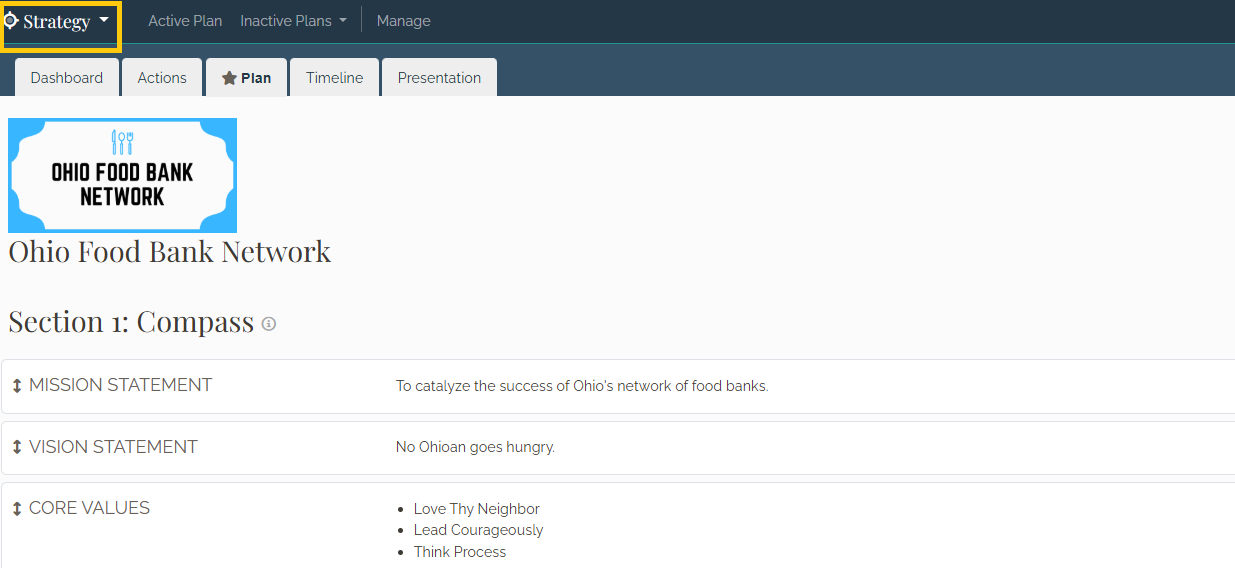
Navigate to the Strategy page, scroll down to Section 2: Actions and locate the Goal you want to update.
3. Open Goal Progress
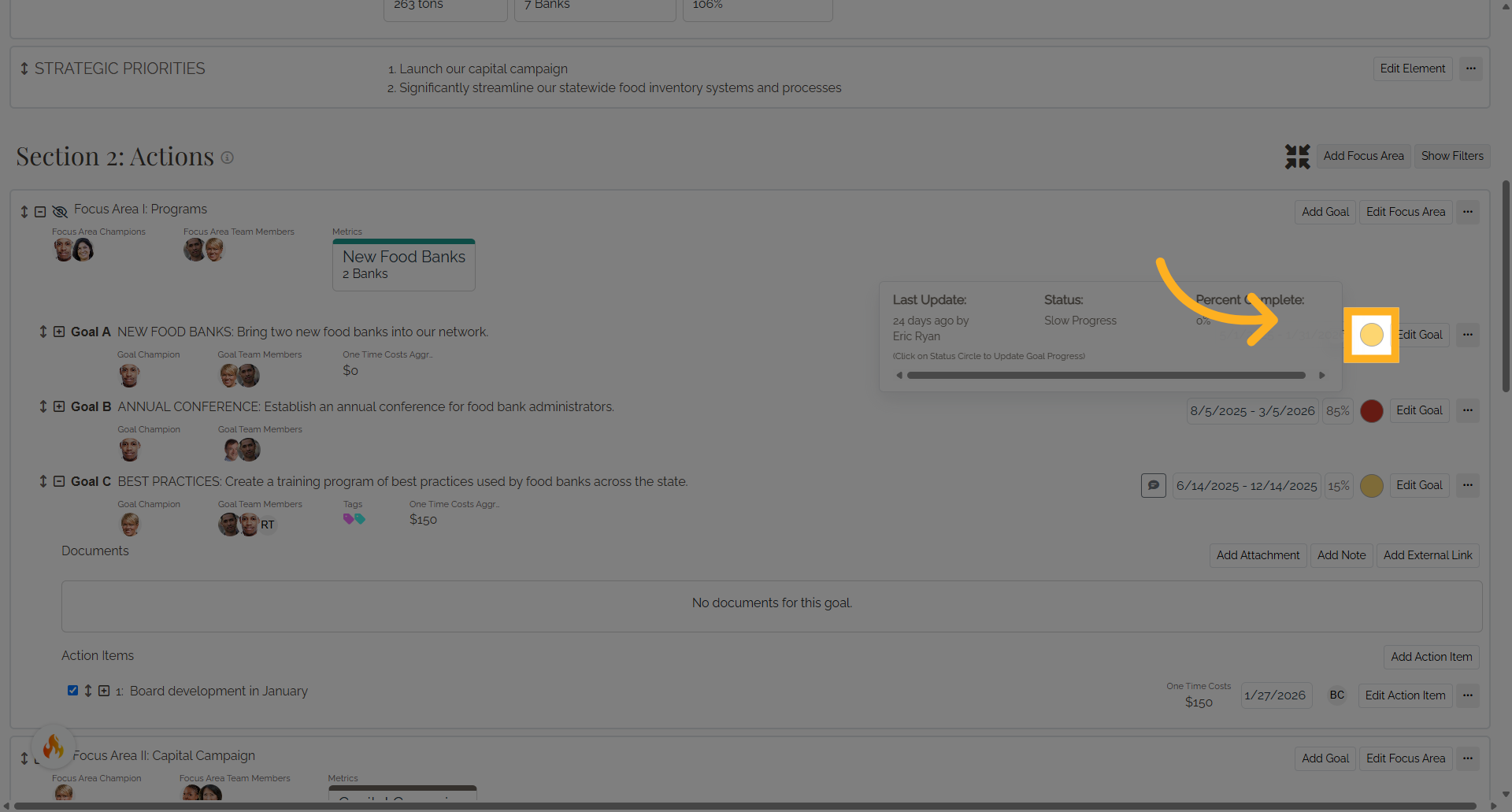
Click the Goal Progress indicator.
4. Review Goal Progress
The Goal Progress window allows you to review and update the Goal's progress.
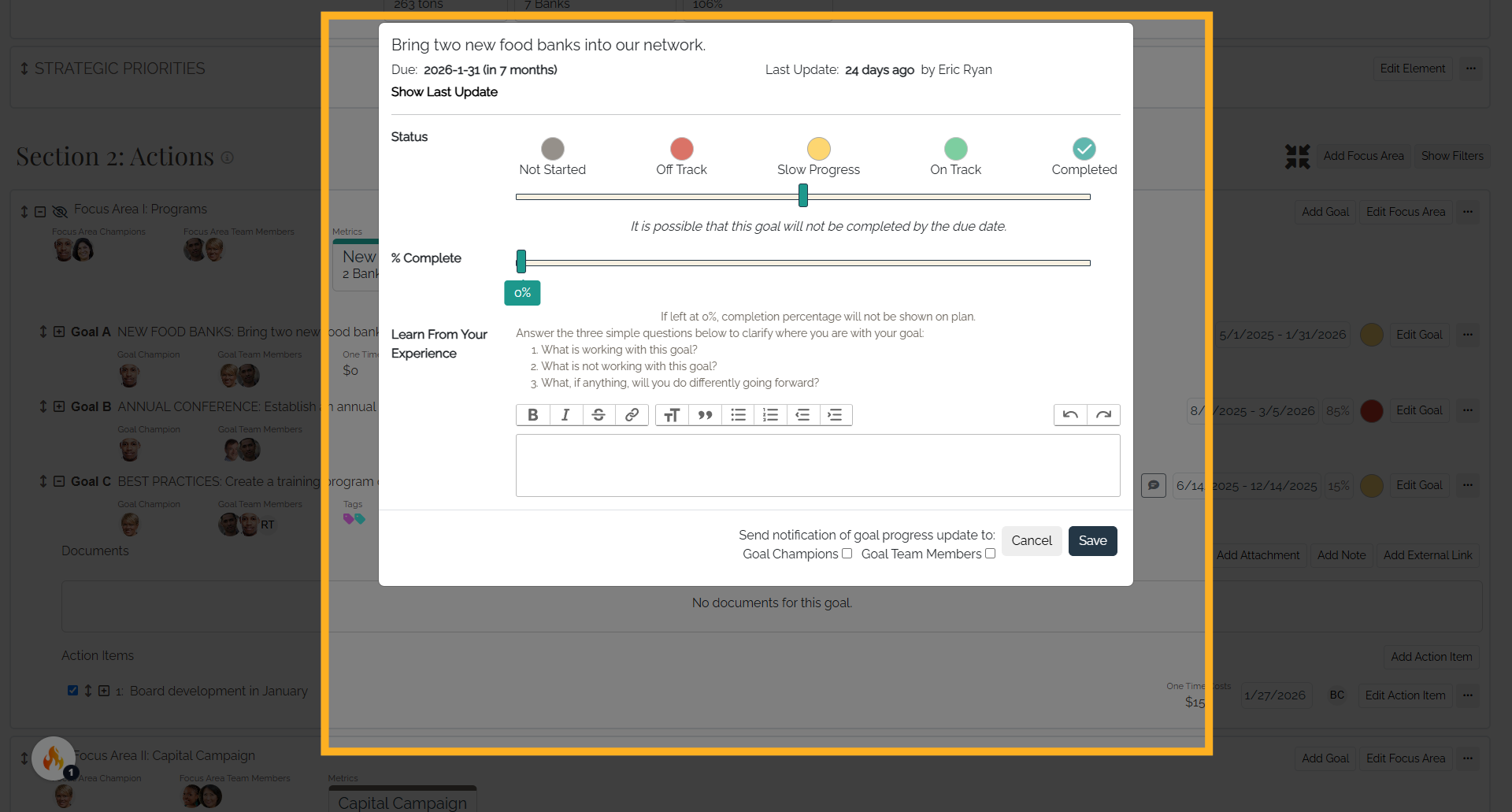
5. Review Previous Updates
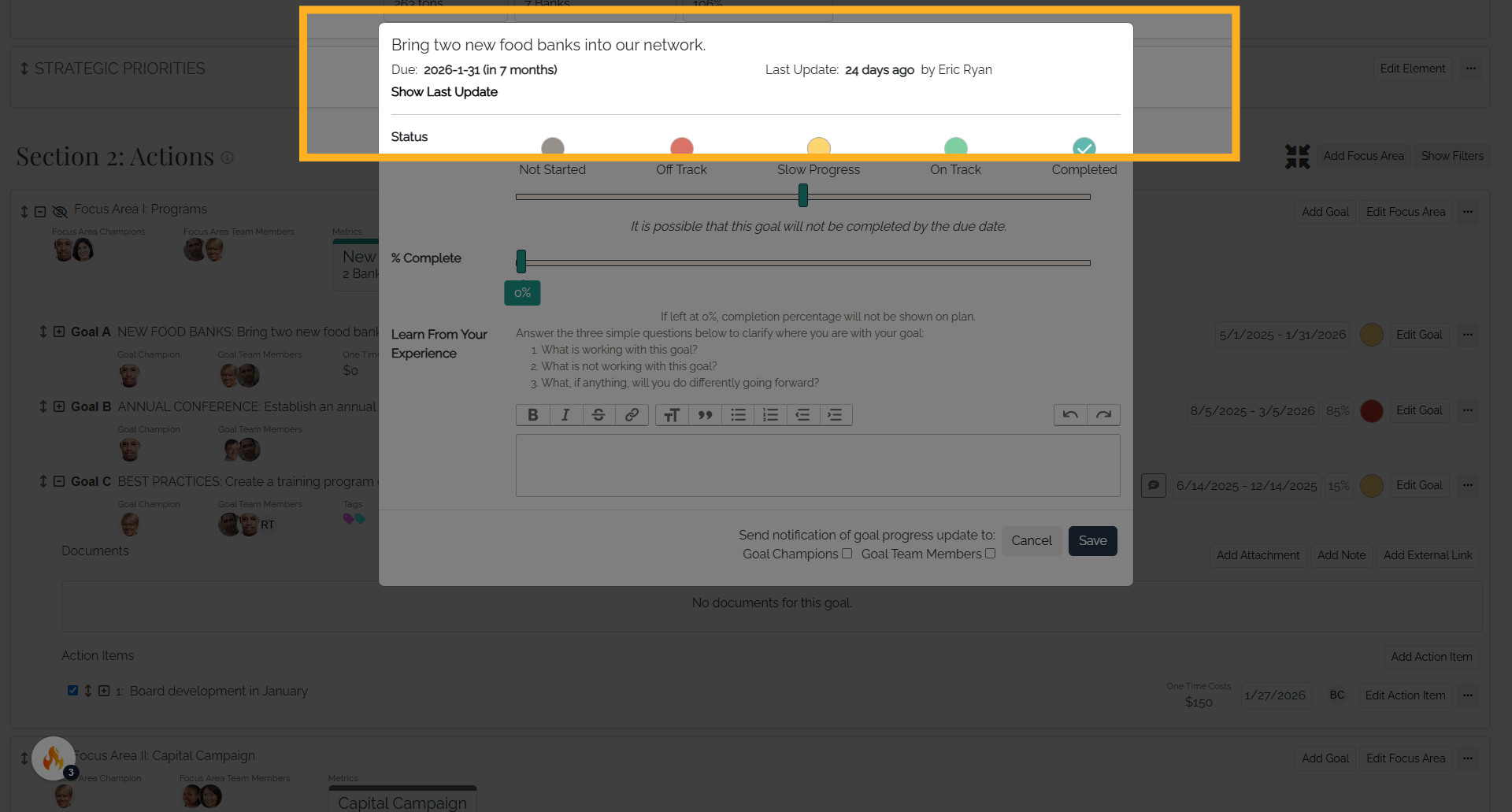
Review the most recent update, including who submitted it and when it was recorded.
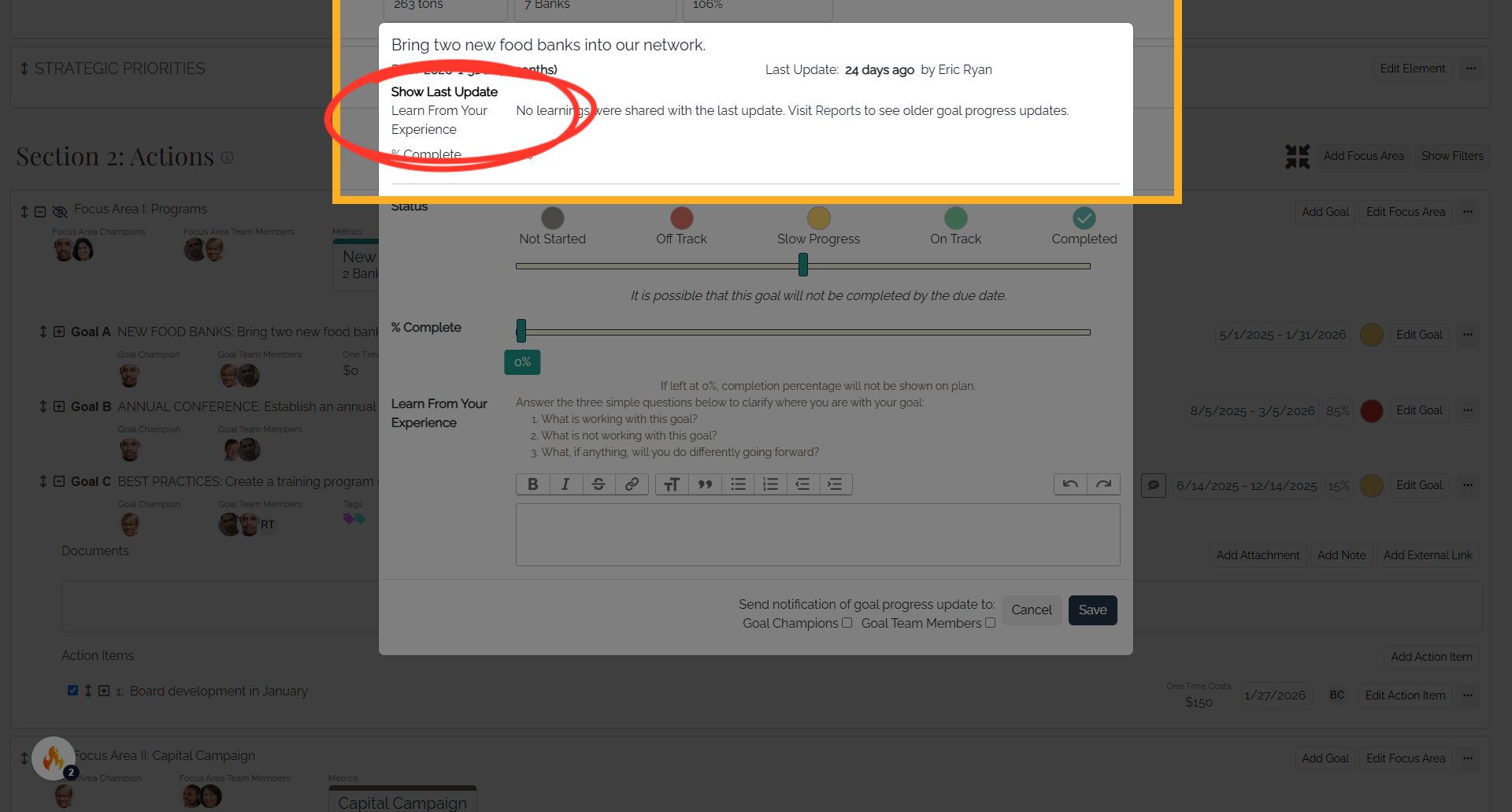
6. View Update History
Click Show Last Update to view previous updates and progress history.
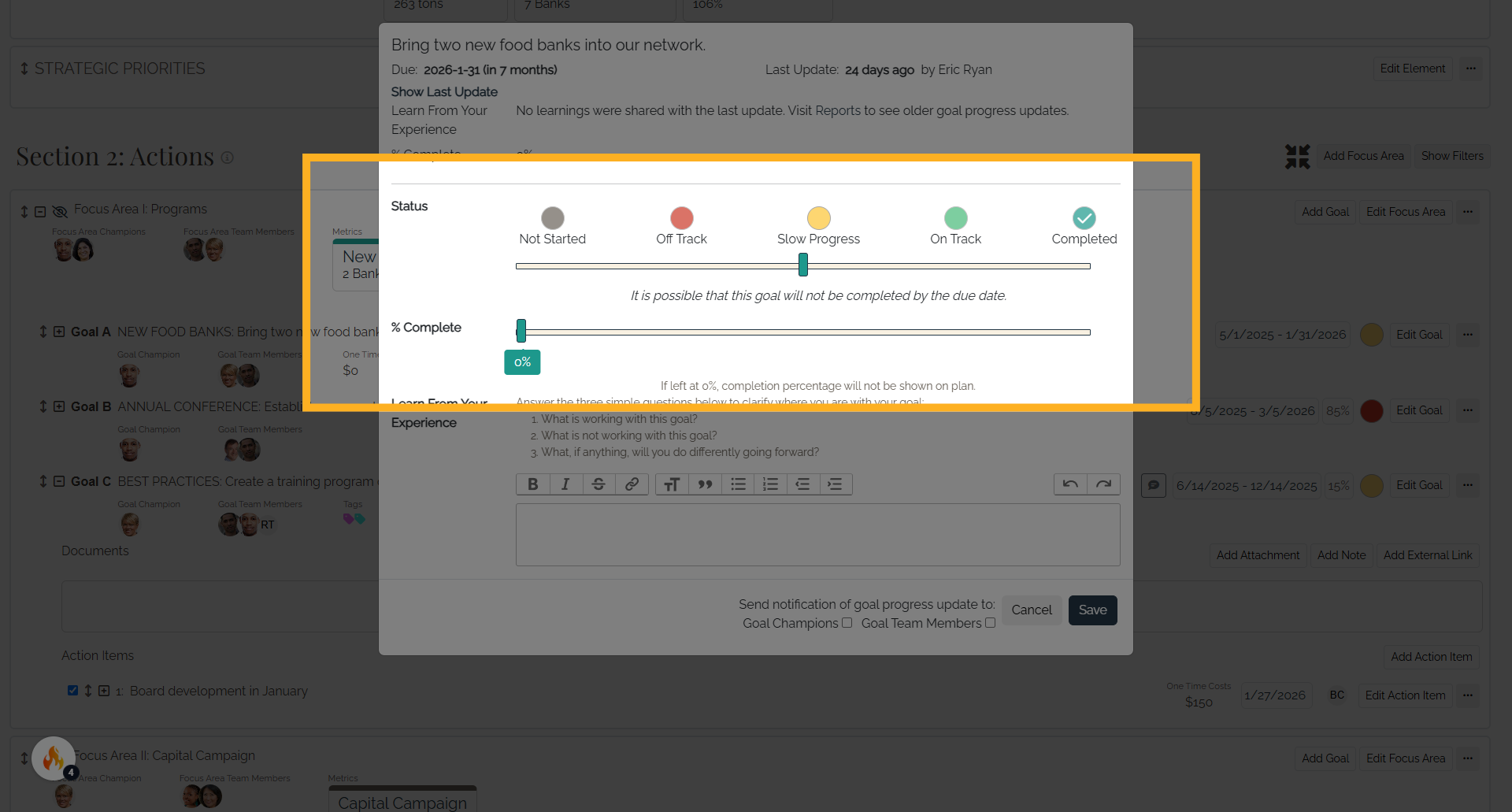
7. Update Goal Status
Select the current Goal status and update the completion percentage to reflect progress.
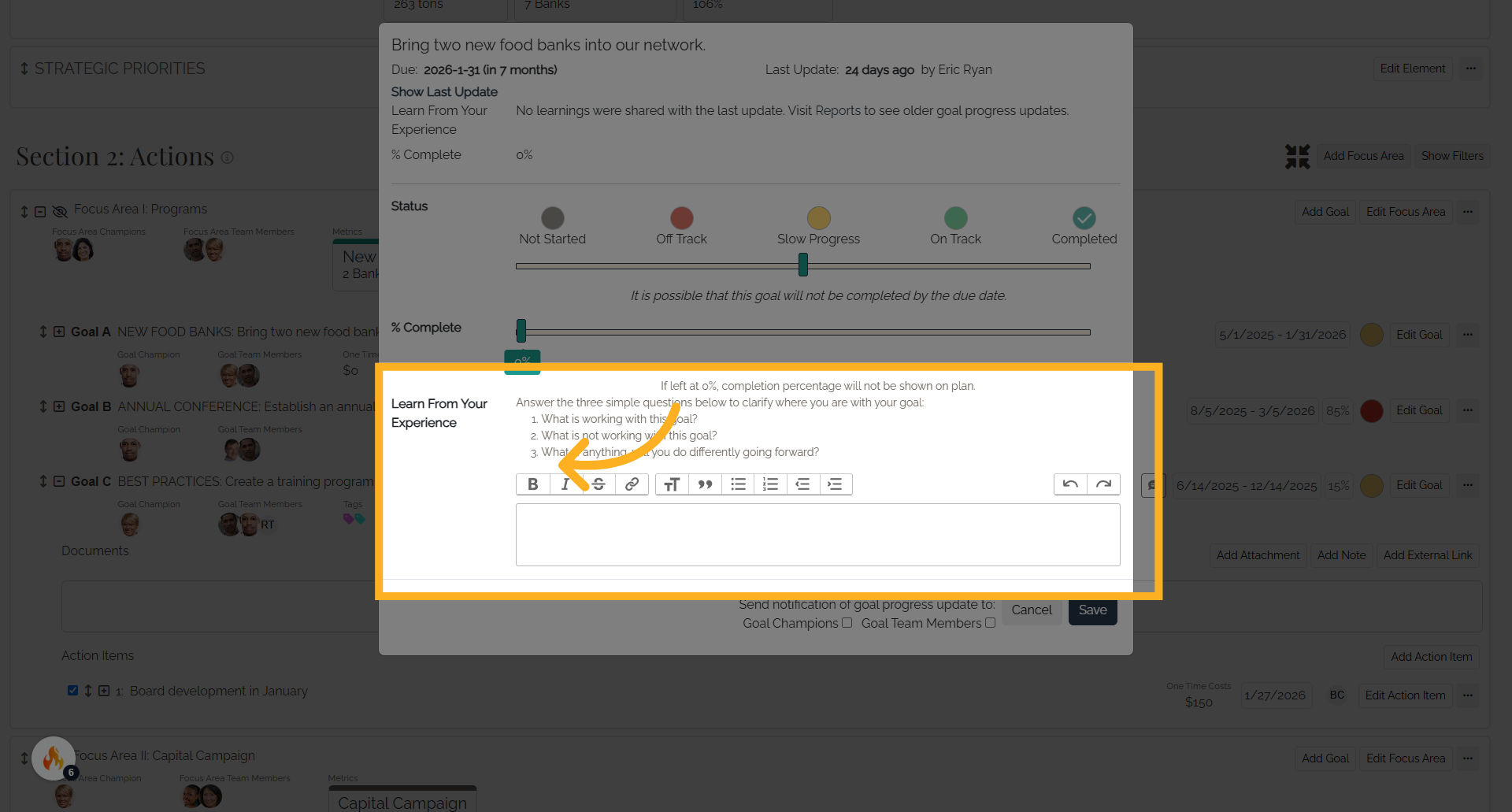
8. Add Progress Notes
Use the Learn From Your Experience section to document what's working, what's not working, and what could be done differently. You can also provide information relevant to your team's work.
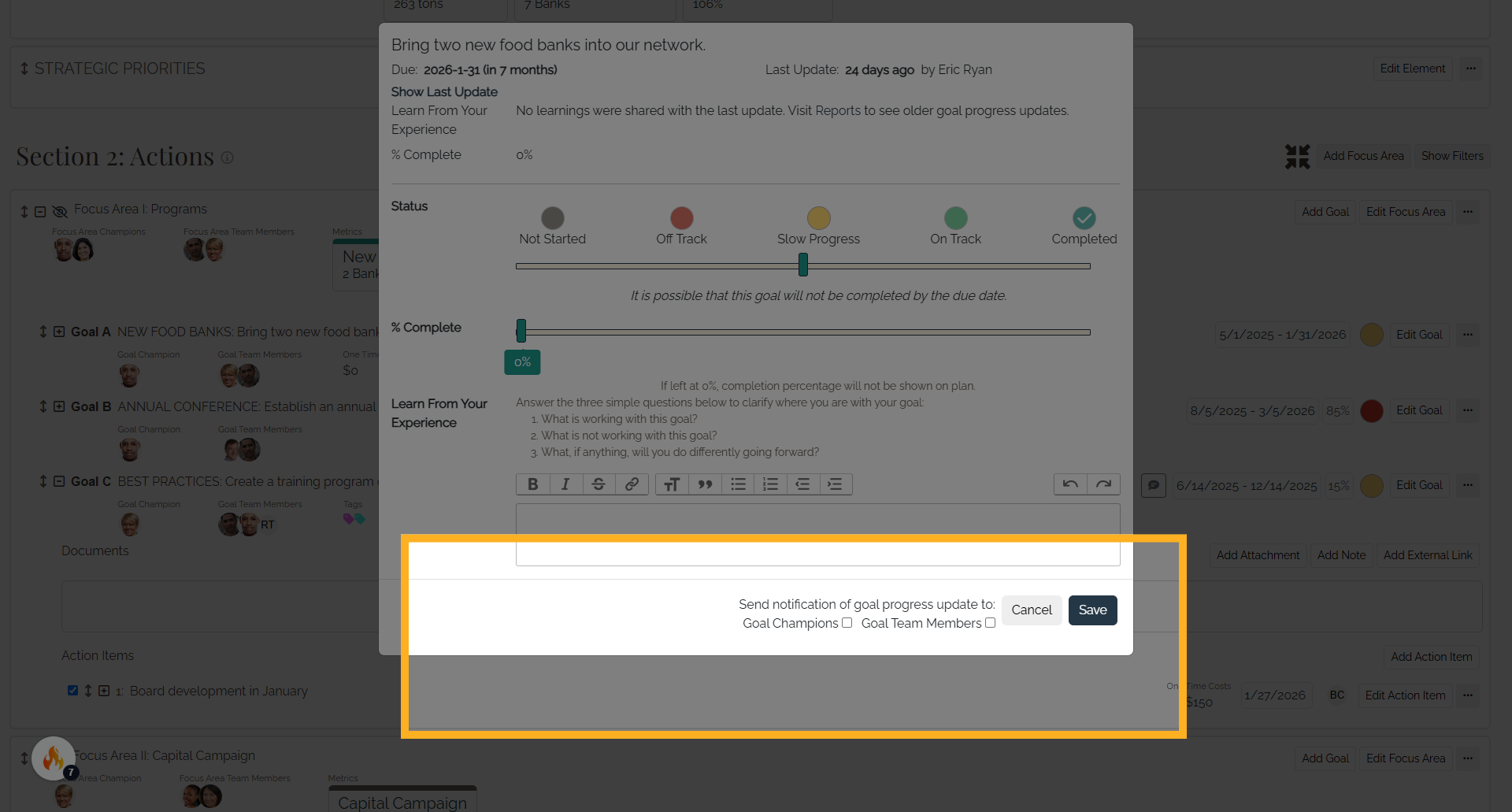
9. Notify Team Members
Select the checkbox to notify Goal Champions and Goal Team Members of the update. Goal Champions who submit the update will not receive an email notification.
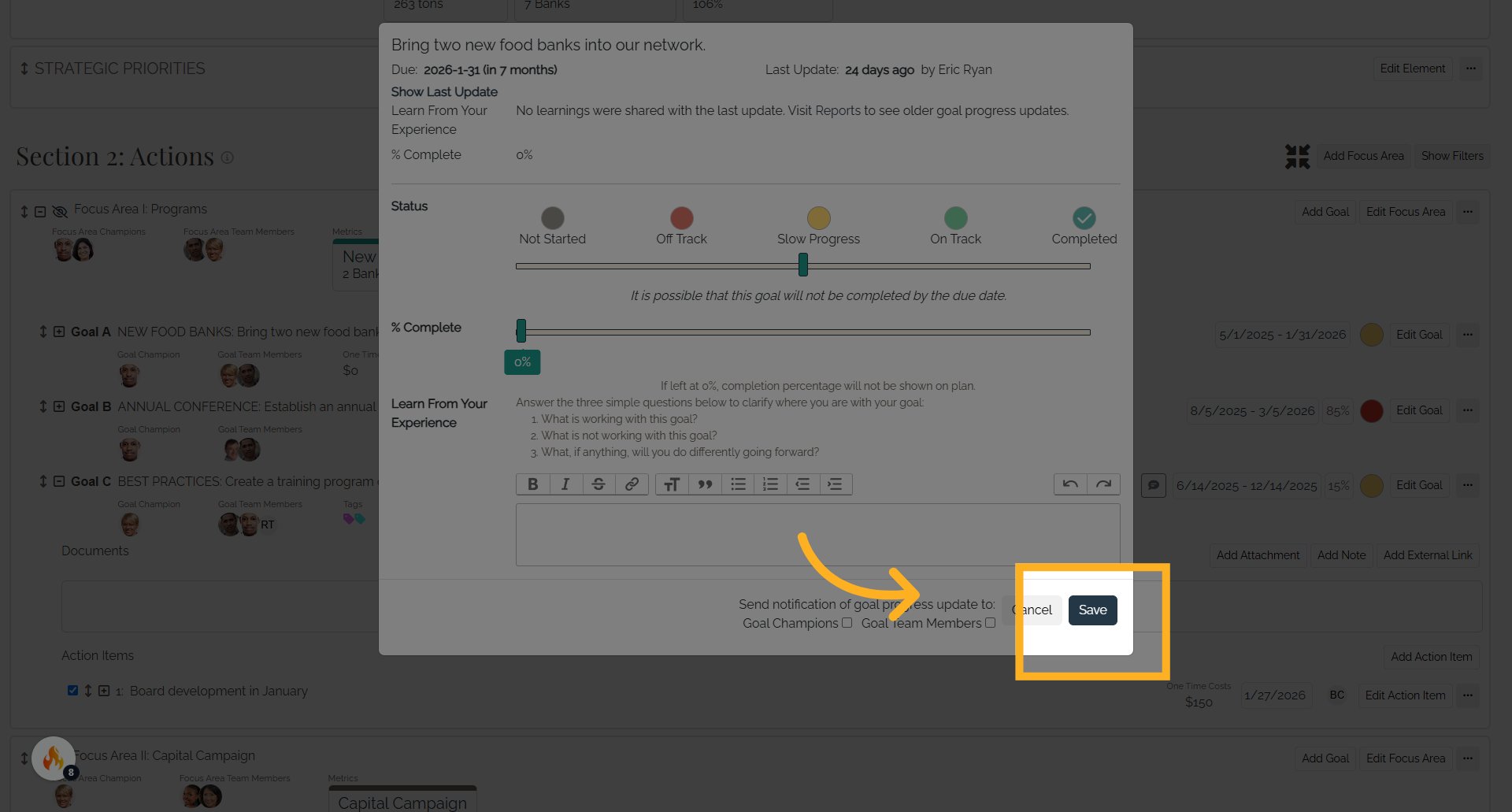
10. Save
Click Save to record the progress update and make it available to your team.
11. Managing Goal Progress Updates
Next, let's explore the tools available to review and manage Goal Progress updates.
12. View Progress Updates
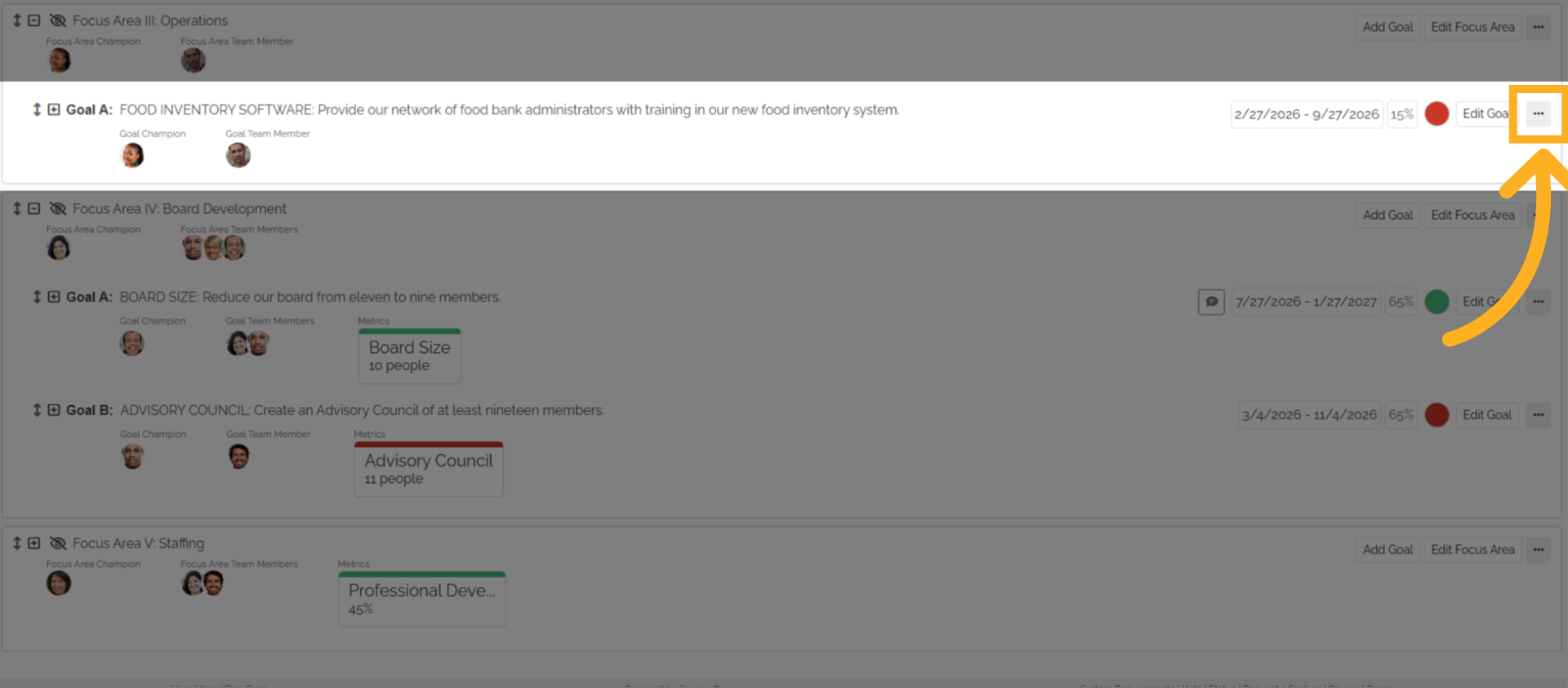
Open the More Actions menu.
13. Open the Progress Updates Panel
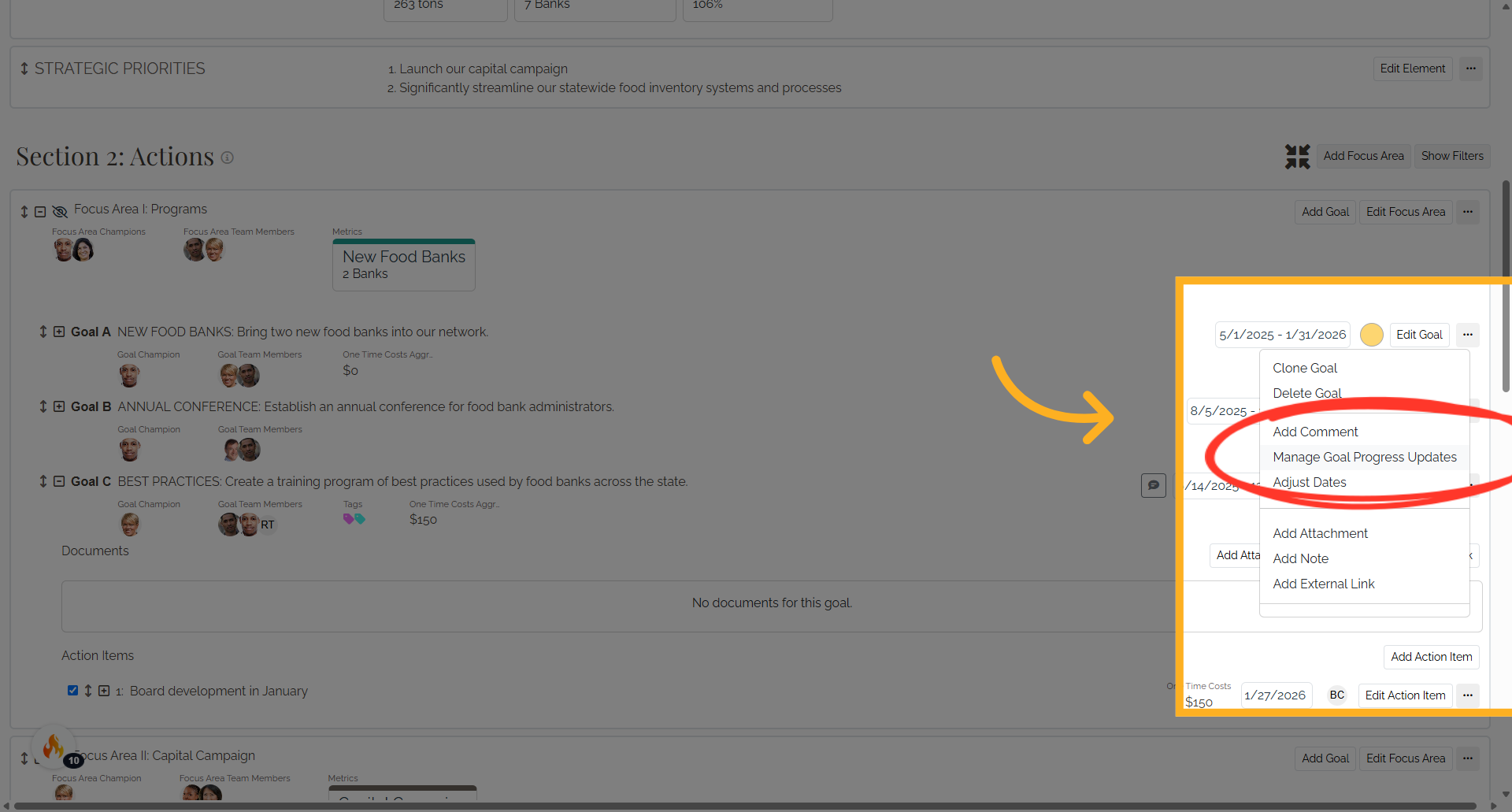
Select Manage Goal Progress Updates to view previous updates.
14. Review Previous Updates
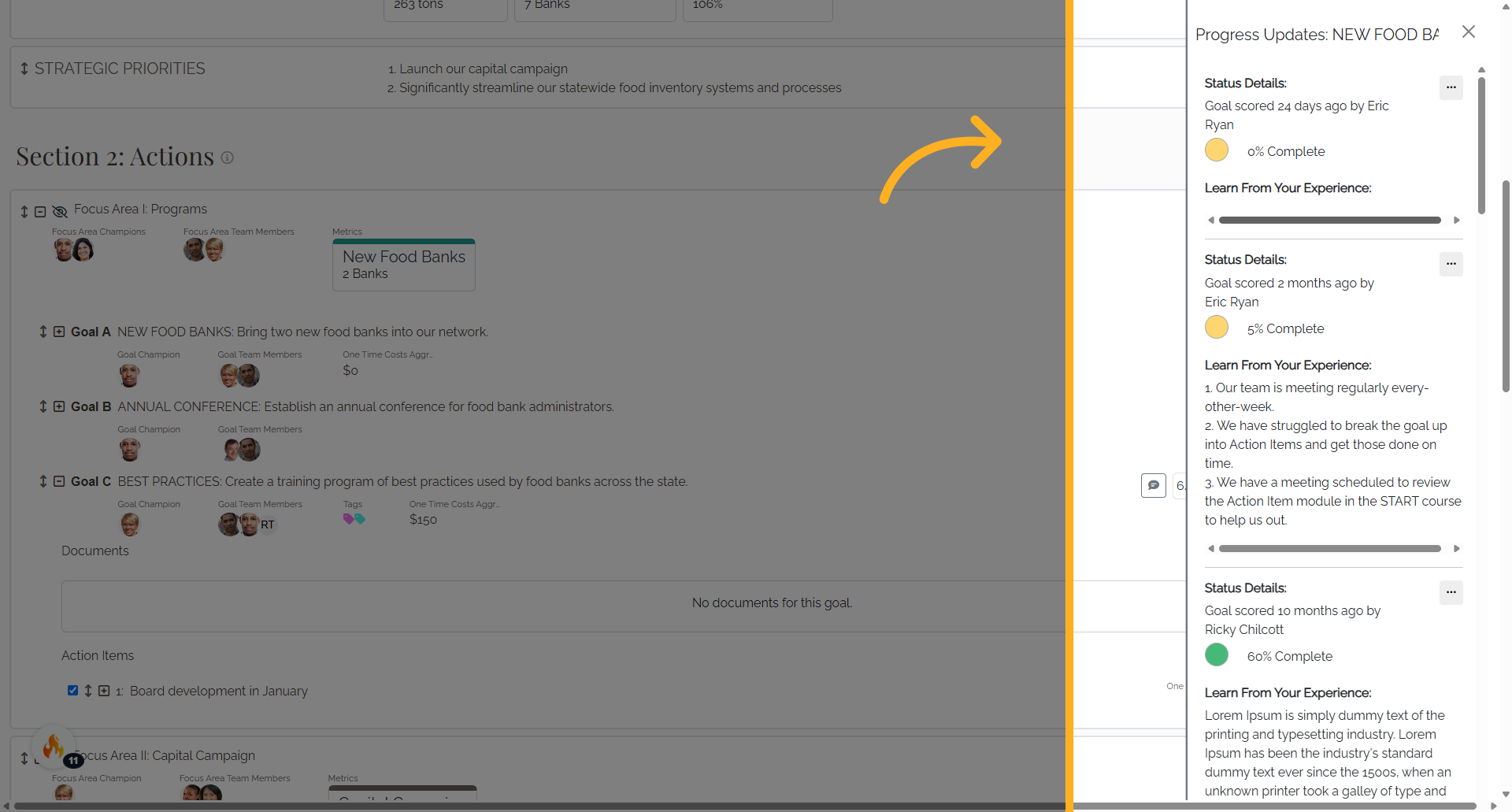
The Progress Updates panel displays previous Goal Progress updates, including completion percentages and details from the Learn From Your Experience section.
15. Delete a Progress Update
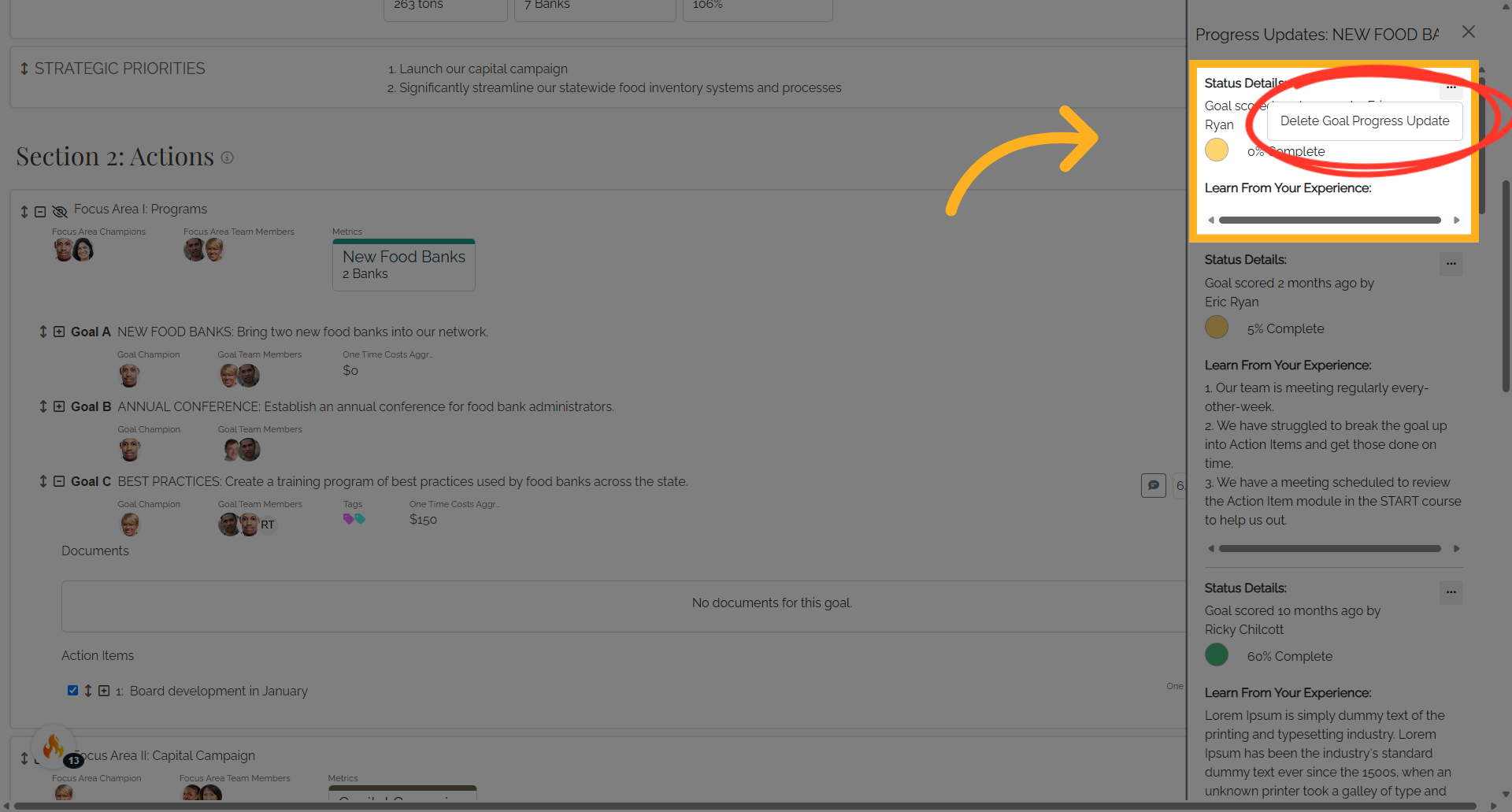
To delete an update, open the three dots menu next to the update and select Delete Goal Progress Update.
16. You're all set.
Great work! You now know how to record, review, and manage Goal progress updates in Causey. Visit help.causey.app for more resources.