Remove or Archive Member from Organization
1. Remove Member from Organization
This guide provides a step-by-step walkthrough on how administrators can remove or archive a member in Causey.
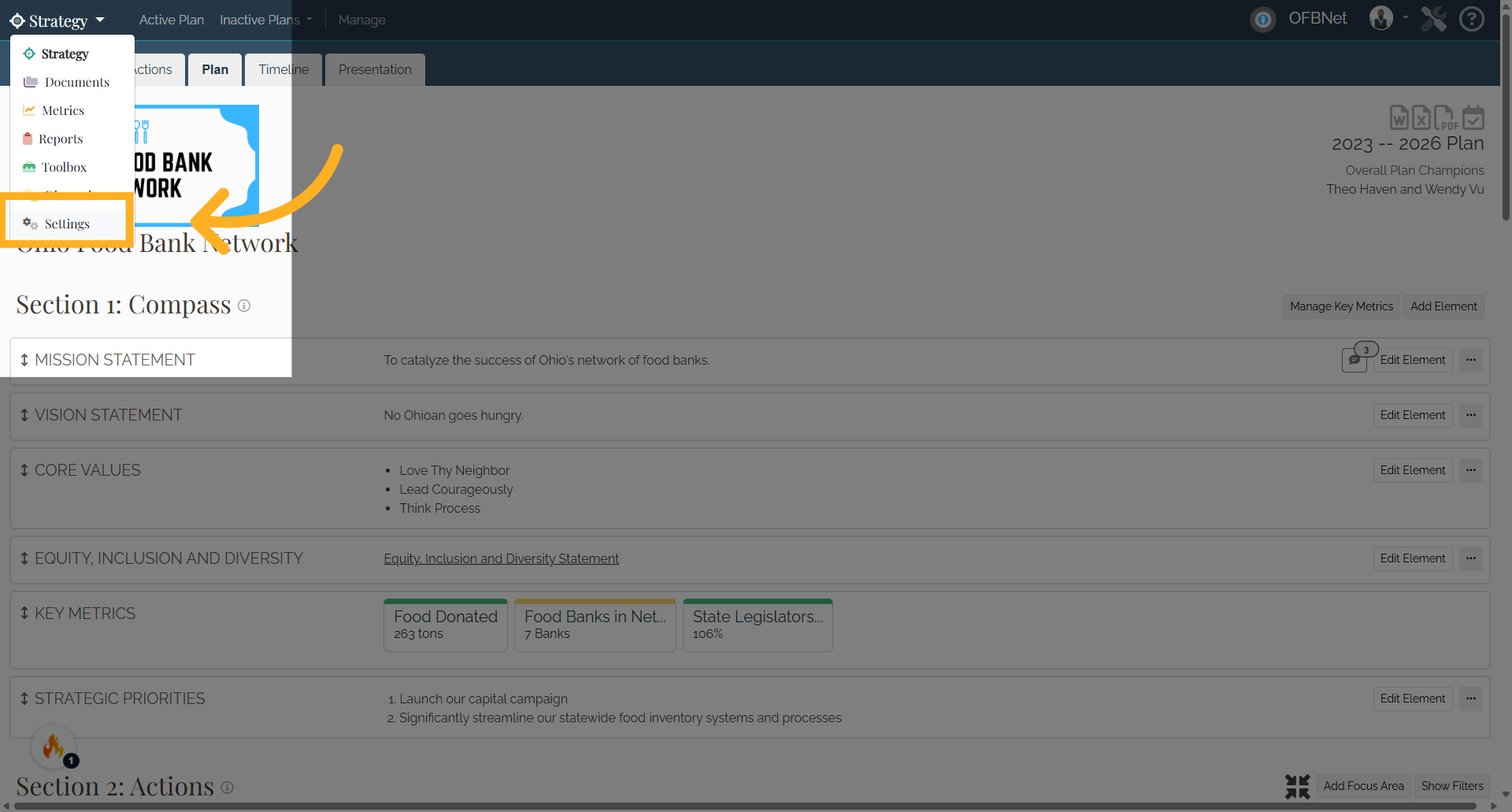
2. Click "Settings"
To begin, click Strategy in the upper-left corner of the page to open the drop-down menu, then select Settings.
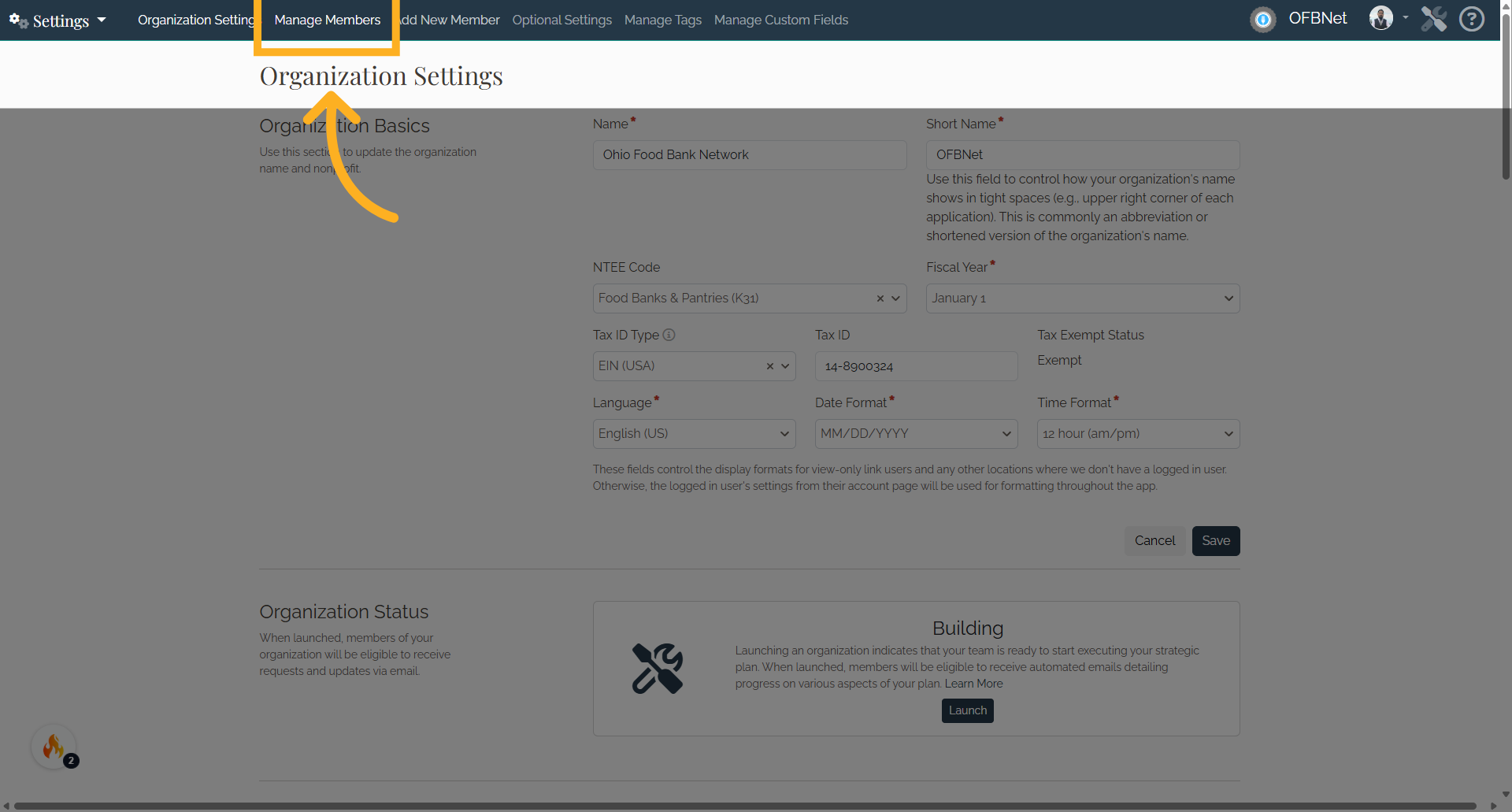
3. Manage Members
From the Organization Settings page, click Manage Member in the top navigation bar to view all team members.
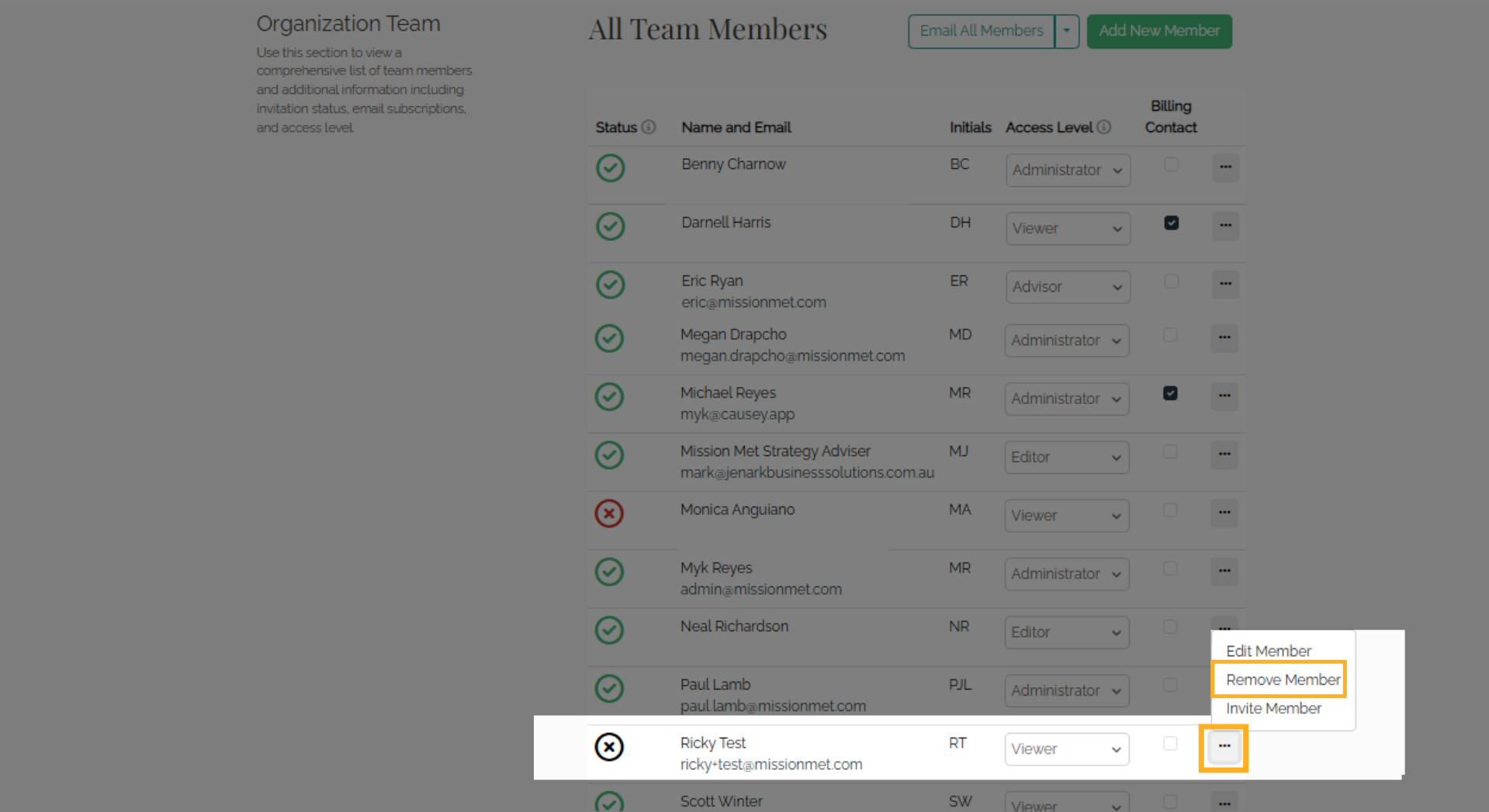
4. Remove Member
In the All Team Members list, select the three-dot button next to the team member’s name, then select Remove Member.
5. Confirm Remove Member
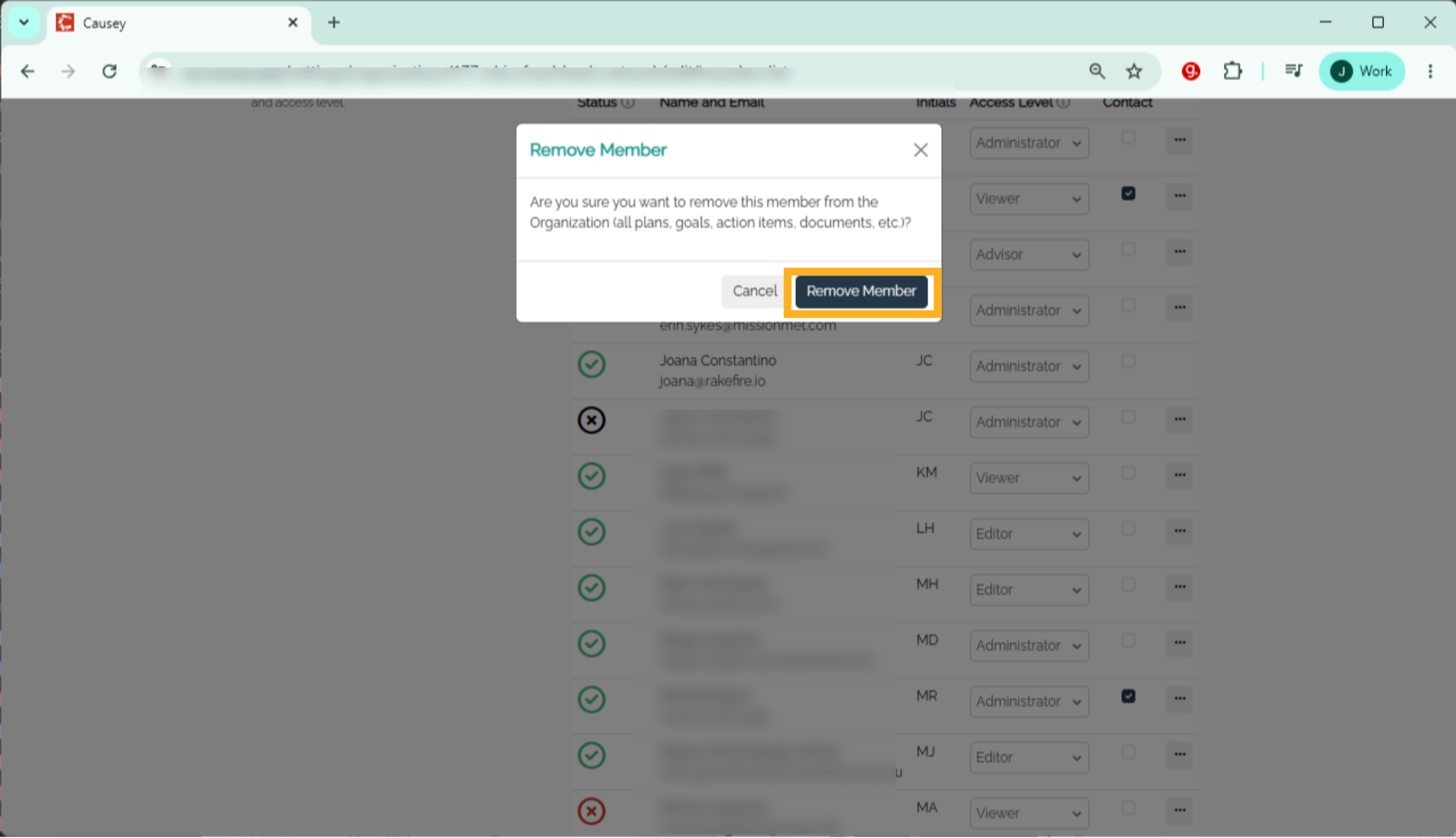
Click Remove Member to confirm removal of the team member from the organization. A confirmation banner will appear once the member has been successfully removed.
6. Archived Members
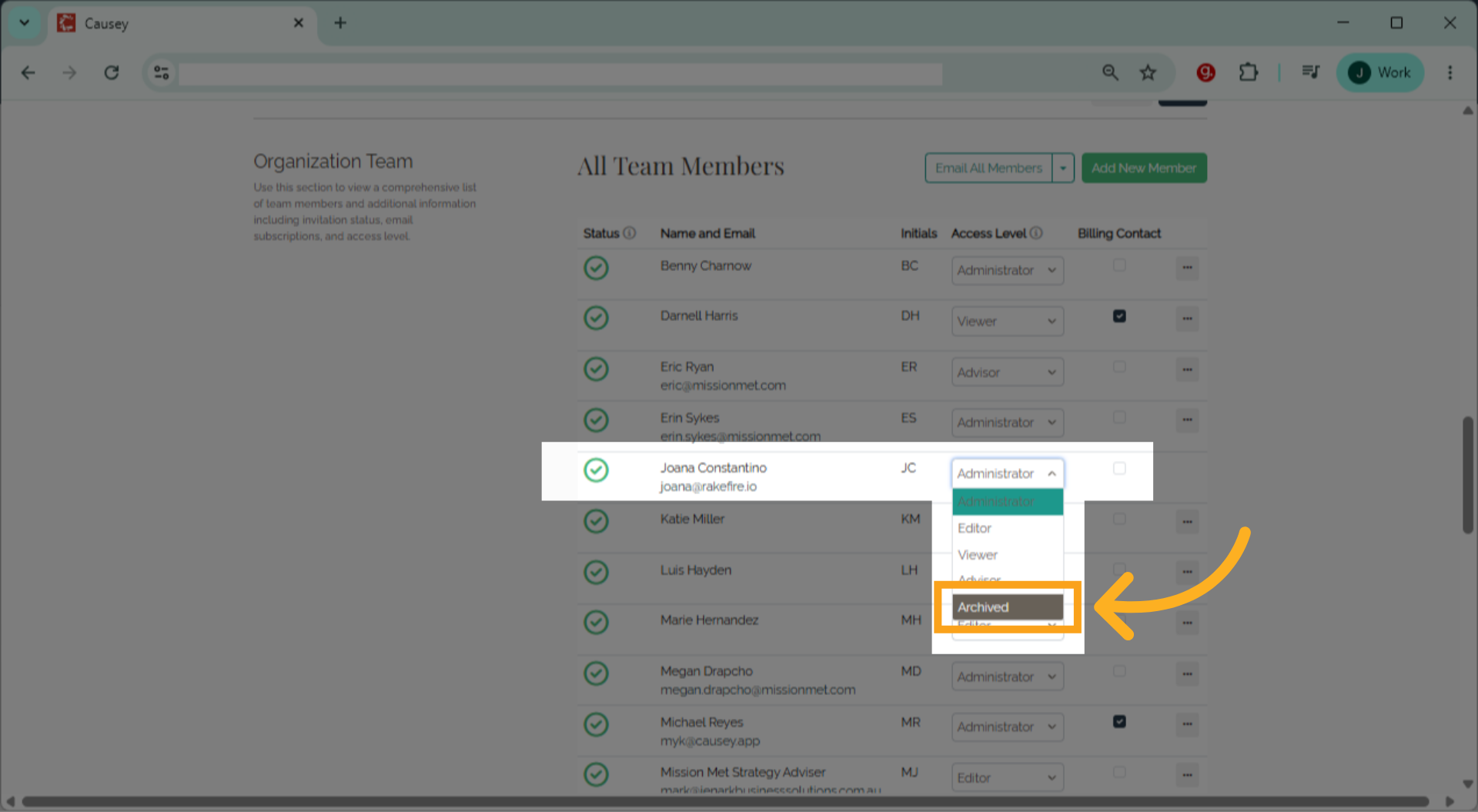
Alternatively, you can archive a member to remove access while retaining historical information and existing assignments by selecting Archived from the Access Level drop-down menu.
7. You're all set.
This guide covered how to remove or archive a member in your organization in Causey. You can return to Settings at any time to manage members or visit help.causey.app for more resources.